Built for Android TV
Run on retail displays, lobbies, and signage devices without relying on Google Play Services on the player.
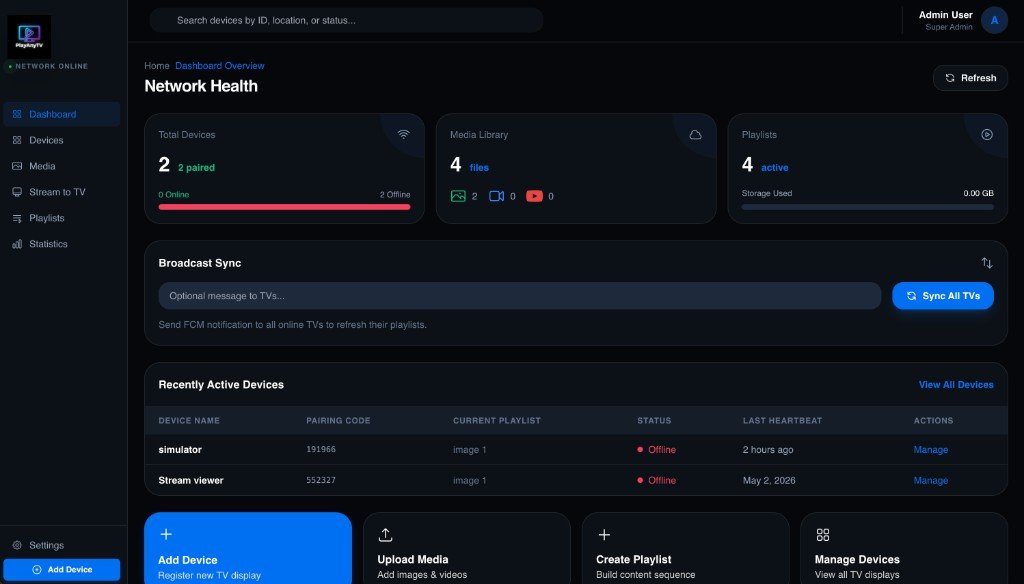
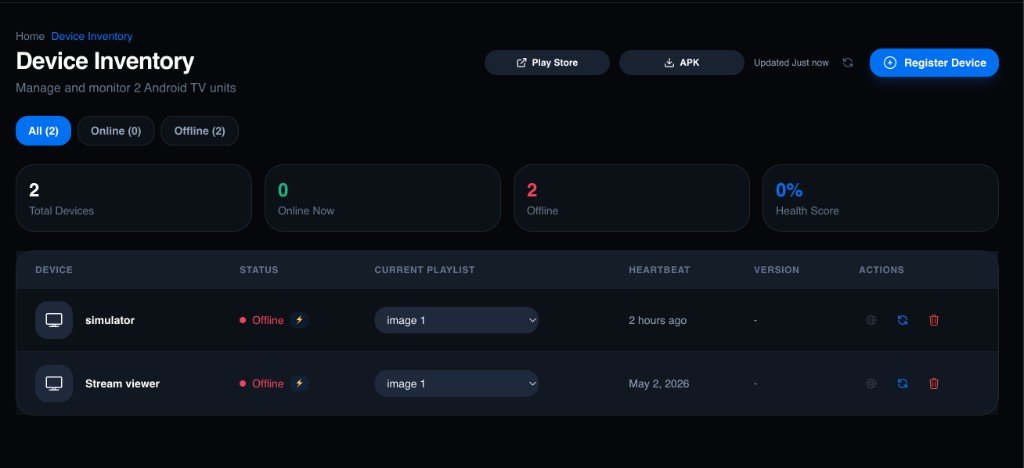
Organizations choose PlayAnyTV when they need dependable digital signage across stores, offices, and public venues. The platform separates content authoring in the browser from reliable playback on Android TV—so marketing and IT teams can collaborate without locking proprietary files to a single location.
Whether you run retail digital signage, lobby directories, or internal communications walls, a centralized signage CMS reduces operational drag: schedule playlists, swap campaigns, and confirm which devices are healthy—all from one professional console.
Designed for operators who want reliable playback, fast updates, and clear visibility across many screens.
Run on retail displays, lobbies, and signage devices without relying on Google Play Services on the player.
Schedule images, video, and YouTube in order. Updates reach devices over a live connection and periodic sync.
Push playlist refresh, orientation, and remote actions from the dashboard when your TVs are online.
Upload your own assets alongside YouTube URLs. Proof-of-play and playback reporting keep teams aligned.
Each screen pairs securely with your account so only your fleet receives your content and commands.
See which displays are online, what they are playing, and catch issues before your customers do.
See the full feature breakdown or check which Android TV hardware works.
From first login to live walls in three steps.
Sign up, upload media, and build playlists in the web console.
Install PlayAnyTV from Google Play or via the APK, open it on the TV, enter the on-screen code, and assign a playlist.
Push updates anytime. TVs pull the latest content and report playback back to you.
The same pairing-and-playlist workflow, tuned to what each kind of business actually needs on the wall.
Digital menu boards
Swap prices and specials across every location in seconds — no reprinting, no laminated boards. Update a menu board mid-lunch-rush from your phone.
Learn moreIn-store & window displays
Run promotions, new arrivals, and window displays on a schedule. Push a flash-sale update to every store the moment it starts, not the next time someone visits with a USB stick.
Learn moreLobby & internal comms
Lobby welcome screens, internal KPI dashboards, and conference room schedules — all managed centrally so facilities teams aren’t walking floor to floor with a laptop.
Learn moreWaiting room displays
Queue status, health information, and wait-time updates in waiting rooms, refreshed remotely — reception staff never touch the screen itself.
Learn moreDigital notice boards
Replace the paper notice board with a screen that updates itself: class schedules, announcements, and emergency notices pushed campus-wide in one action.
Learn more Something else?PlayAnyTV plays scheduled playlists on any Android TV screen — if it's a wall-mounted or freestanding display, it fits.Start freeMonthly plans in INR. Start free, then scale TVs, playlists, and storage as you grow. Limits match standard product seeds—verify your live quota in Settings after you sign in.
Most popular
60+ TVs
Prices shown per month for standard seeded plans (USD, or INR if you appear to be in India). Taxes and payment processor fees may apply. Your live limits, currency, and checkout options appear in the app after sign-in.
Detailed answers for procurement, IT, and operations teams evaluating PlayAnyTV. Open any question for the full explanation.
What PlayAnyTV is and where it fits in your signage stack.
PlayAnyTV is a cloud-hosted digital signage platform purpose-built for Android TV. A browser-based console is used to upload media, build ordered playlists, and assign them to screens; a dedicated TV app handles reliable full-screen playback and reports status back to your account.
The split between “authoring in the cloud” and “playing at the edge” is intentional: marketing and creative teams work in the dashboard, while Android TV devices in stores, lobbies, or venues stay focused on uninterrupted playback.
Compared with ad hoc solutions (USB sticks, manual HDMI laptops), PlayAnyTV is designed for repeatable operations: you can refresh campaigns remotely, see which players are online, and keep a single source of truth for what should be on each display.
The product is aimed at organizations that operate one or many fixed displays—retail chains, corporate offices, education, hospitality, healthcare waiting areas, and public information screens—where someone is responsible for keeping content accurate and on schedule.
It fits teams that have outgrown informal tools but do not want the overhead of legacy on-premise signage stacks.
If you need kiosk-style touch apps or highly custom interactive experiences, you may pair PlayAnyTV with specialized solutions; PlayAnyTV focuses on scheduled playlist playback and fleet visibility.
Consumer workflows (casting, browser tabs, or plugging in a laptop) are fragile for 24/7 signage: they break on sleep, updates, and user error. PlayAnyTV treats each TV as a managed endpoint with a defined playlist, health signaling, and remote refresh.
Playlists loop predictably; you are not dependent on a phone or PC staying connected for the wall to work.
Operational tasks—swap a promo, fix orientation, trigger a resync—are done from the dashboard rather than by visiting the device.
Yes. The model is centralized content and assignments with per-device pairing. Each Android TV is linked to your tenant so you can reuse media and playlists across sites while still controlling which screen runs which schedule.
Heartbeat and online indicators help you understand whether a location is reachable before you assume a content issue.
Exact scale limits depend on your subscription tier and infrastructure; plan with your Techpuram account team if you are rolling out a very large fleet.
The product’s first-class workflow is the dashboard plus the Android TV player. Some deployments expose HTTP APIs for device and media operations on the backend you already host.
If you need ERP, DAM, or ticketing integrations, discuss scope with Techpuram: batch imports, read-only analytics feeds, and secured service accounts may be available depending on your tier.
Treat any non-documented endpoint as unstable unless your contract explicitly covers it.
Setup takes about five steps and no technician visit: (1) install PlayAnyTV on the Android TV device from Google Play or the direct APK, (2) launch it—the screen shows a 6-digit pairing code, (3) sign up or log in to the PlayAnyTV dashboard in your browser, (4) enter the pairing code under TVs to link the screen to your account, then (5) upload media or link YouTube, build a playlist, and assign it to the paired TV.
The screen starts playing automatically once a playlist is assigned—no reboot or manual sync step is required.
Repeat steps 1–4 for each additional screen; playlists and media you already uploaded can be reused and assigned to any TV on your account.
Most digital signage platforms assume a fully Google-certified Android TV or a proprietary player box. PlayAnyTV is built to also run on Android TV hardware without Google Play Services, so it works on lower-cost commercial media players and generic signage boxes that many competing tools cannot target.
Pairing is code-based and self-serve (no MDM enrollment or reseller account required to get a single screen running), which suits small deployments as well as multi-site rollouts.
Pricing is published and tiered by TV count rather than gated behind a sales call for small fleets—see the Pricing section for exact limits.
PlayAnyTV focuses specifically on scheduled playlist playback and fleet visibility (heartbeat, online/offline, remote sync) rather than interactive kiosk or touch experiences; pair it with a specialized tool if you need touch UI.
Yes. Install the app on a TV, and while it shows its 6-digit pairing code, go to playanytv.techpuram.com/try on any device and enter that code — a demo starts playing on the TV within seconds. No email, password, or payment details required.
This only works on a TV that has not been paired yet; it cannot be used to take over a screen someone else already set up.
The demo automatically stops after a short window. Sign up for a free account afterward to assign your own content instead.
Media you upload and metadata about playlists live in the PlayAnyTV cloud backend associated with your tenant. Access is gated by your account login and by device credentials issued at pairing time.
For data-residency, subprocessors, and retention, request Techpuram’s latest security or DPA pack during procurement.
You remain responsible for rights and licensing for creative assets you upload or link (including YouTube).
Android TV requirements, connectivity, and what to expect on site.
The player targets Android TV hardware commonly deployed in commercial environments, including devices that do not ship with Google Play Services. Playback and remote control use Internet-based APIs and long-lived connections appropriate for managed signage.
Your integrator should still verify codec support, resolution, and HDMI output for the specific hardware you purchase.
You need stable outbound Internet access from each site for pairing, sync, heartbeat, and remote commands.
Players should have reliable outbound connectivity to your PlayAnyTV backend. Throughput requirements depend on whether you stream YouTube, download large video files for offline playback, or show mostly images.
For video-heavy playlists, plan adequate bandwidth and, where possible, wired Ethernet to avoid Wi-Fi contention in busy stores.
Firewall or proxy environments may require allowlisting your API and streaming endpoints—coordinate with IT using your deployment documentation.
Each TV completes a pairing flow that binds the device to your account. Subsequent API calls from the player use credentials issued during pairing so only authorized devices can fetch playlists and post telemetry.
Treat pairing codes like short-lived secrets: share them only with staff who should register hardware.
If a device is lost or retired, revoke or delete it from the dashboard so it cannot continue to authenticate.
The Android app is built for real-world networks: when offline, it can continue playing content that is already cached locally, depending on media type and what has finished downloading.
YouTube and other streaming sources generally require connectivity at playback time.
When the link returns, the player reconnects, sends heartbeat data, and picks up playlist updates you published while it was away.
Choose commercial or prosumer Android TV devices with stable power, adequate cooling for 24/7 use, and the video outputs you need (HDMI, 4K, HDR as required). The app is built for the Android TV form factor rather than one OEM model.
Prefer wired Ethernet where possible; if you use Wi-Fi, plan for enterprise-grade access points and SSID policies.
Validate H.264/H.265 decode and maximum resolution on a pilot device before you standardize on a SKU.
Technically some sticks run Android TV, but many lack the thermal headroom, remote management hooks, and I/O that professional signage expects. Techpuram recommends dedicated Android TV boxes or displays intended for digital signage or kiosk use.
Consumer devices may apply aggressive sleep policies or auto-updates that interrupt loops unless carefully configured.
If you must use retail hardware, test burn-in, reboot behavior, and long-run stability for a full week before rollout.
Media types, publishing workflow, and day-to-day management.
Typical deployments mix uploaded images and video files with YouTube URLs. The dashboard is used to upload or link assets, set durations for stills, and arrange items in playlist order.
Supported codecs and maximum file sizes follow the product’s current documentation; re-encode legacy files if they fail to play on your target hardware.
Portrait versus landscape layouts can often be managed from the console or device policies—confirm the exact capabilities in your tenant configuration.
When you save and publish changes in the dashboard, the backend coordinates delivery to players. Connected devices can receive near-real-time signals to refresh; the platform also uses periodic sync and heartbeat responses so players eventually align even if they miss a single push.
Large media changes may require download time before the new item appears; the TV UI can reflect “syncing” or download progress depending on build.
You can often trigger a broader “broadcast sync” from tools connected to your account so many TVs pick up work at once.
The platform is designed with operator visibility in mind: heartbeat payloads can include what is playing, and supplementary features (such as screenshot or analytics endpoints) may be available depending on your plan and backend configuration.
Use these signals for compliance, campaign verification, or troubleshooting—not as a legal guarantee unless your contract says otherwise.
Retention and export formats vary; ask Techpuram for the reporting map that matches your tier.
Commercial terms—including free trials, seat or device limits, and support response targets—are defined at signup or in your order with Techpuram. The marketing site describes capabilities; your agreement describes SLAs.
For procurement or security questionnaires, request the latest security overview and data-processing details from Techpuram.
Product feedback and roadmap questions should go through your customer success contact so prioritization matches your deployment timeline.
PlayAnyTV is centered on ordered playlists assigned to TVs. Advanced day-parting—multiple schedules per device with calendar rules—depends on features enabled for your tenant.
Many teams achieve “morning vs afternoon” messaging by maintaining separate playlists and swapping assignments when campaigns change.
Ask Techpuram if you need automated schedule templates or API-driven switches for high-frequency changes.
Default builds show product branding suited to a standard SaaS deployment. Co-branding, custom splash screens, or OEM-style packages may be available for Business-tier or enterprise agreements.
Legal review is required before distributing a white-label APK outside your organization.
Expect additional engineering and signing workflows for fully custom player builds.
How subscriptions, limits, and payments work alongside the product.
PlayAnyTV is offered in tiered monthly plans (Free through Business) with increasing limits for paired TVs, playlists, and cloud media storage. Public list prices are shown on this site in USD; your checkout or invoice may reflect local taxes or processor fees.
The Free tier lets you run a small pilot on one TV with conservative storage so you can validate pairing and playback before you commit.
Paid tiers add headroom for more screens and larger media libraries—compare the Pricing section for typical seeded limits.
Plans are differentiated primarily by how many TVs you can pair, how many playlists you can maintain, and how much uploaded media you can store in aggregate for the tenant. The Pricing section on this page lists the standard seeded limits for each tier.
Limits are enforced server-side so fleets stay predictable; if you approach a cap, upgrade the plan or archive unused media.
Your live entitlement always comes from the database record tied to your tenant—confirm exact numbers under Settings / Billing after login.
Paid subscriptions are processed through integrated billing (commonly Razorpay in supported regions). You authorize a recurring charge for the plan you select; successful payment activates the corresponding limits.
Free tier does not require a card unless you later upgrade.
If a renewal fails, your tenant may move to a restricted state until billing is corrected—watch the email and in-app notices from Techpuram.
Yes. Upgrades typically take effect after checkout completes and the subscription row updates. Downgrades may apply at the end of the current period so you do not lose headroom mid-cycle—confirm the behavior shown in your billing UI.
Cancellation stops future renewals; you may retain read-only or Free-tier access depending on policy.
Export any compliance-critical reports before you close an account you no longer need.
Self-serve checkout focuses on monthly subscriptions. For annual prepay, multi-year agreements, invoicing in INR or other currencies, or TV counts beyond published tiers, contact Techpuram sales.
Enterprise deals may include custom SLAs, onboarding assistance, or compliance documentation.
Non-standard contracts are not implied by marketing copy—get terms in writing.
The platform is designed to block or warn when you cross entitlements: for example you may be unable to pair additional TVs, create new playlists, or upload more media until you upgrade or free space.
Proactively monitor usage in the dashboard so campaign launches are not blocked on launch day.
Storage counts usually reflect uploaded blobs; linked streaming sources may not count the same way—verify in-product help or support.
Displayed USD amounts are pre-tax list prices. Applicable VAT, GST, sales tax, or withholding depends on your billing address and local regulations; the payment screen should show the final charge where the processor supports it.
Business customers should supply valid tax IDs if your jurisdiction requires them for reverse charge or exemptions.
Keep invoices from the payment provider for your finance team.
Refund and credit policies depend on Techpuram’s published terms at purchase time and on the rules of the payment provider. For billing disputes, open a support ticket with invoice identifiers.
Trials and Free tier exist precisely so you can validate fit before you spend.
Chargebacks slow everyone down—contact support first for faster resolution.
Still evaluating? Create an account or sign in to explore the dashboard.